功能Features
状态一目了然Status at a glance
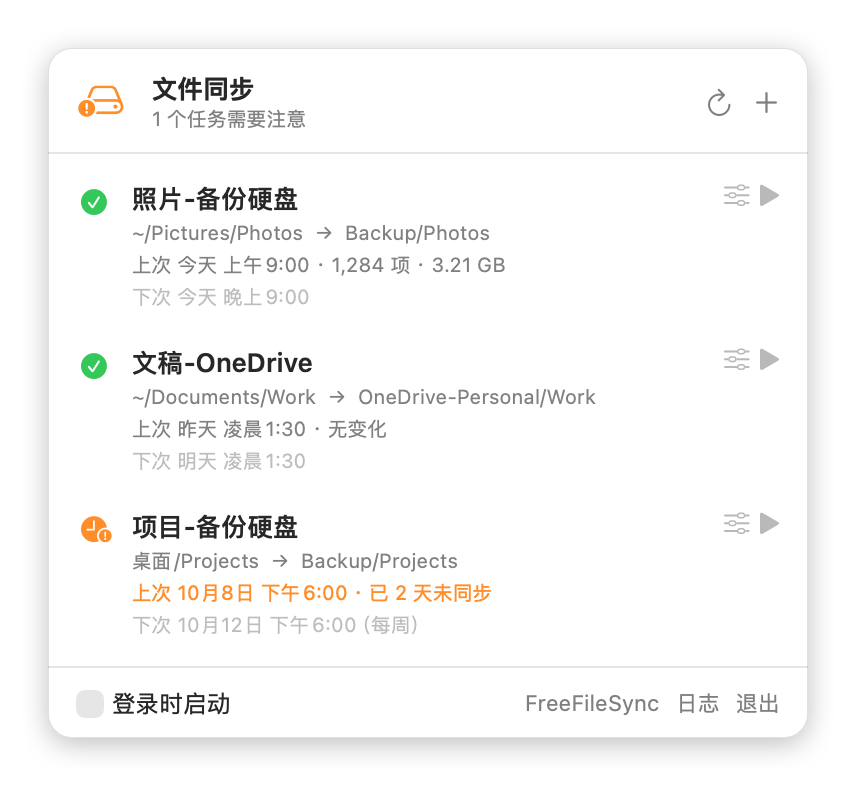
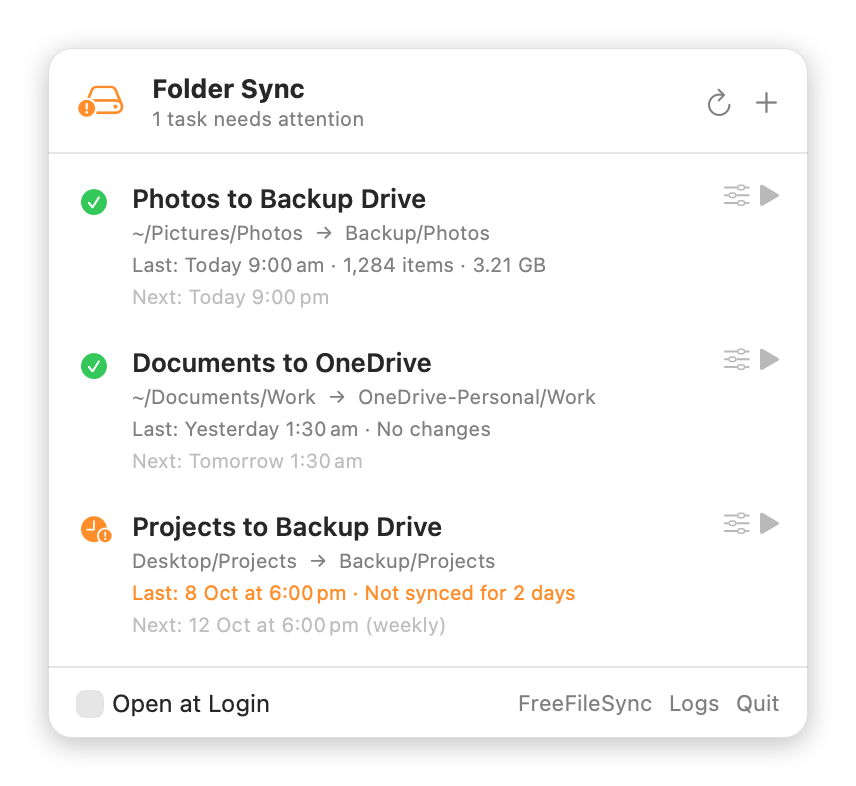
菜单栏里显示每个任务上次同步的结果(复制了多少项、多大)和下次运行时间。See each task's last result — how many items and how much data — and when it runs next.
两种同步方式Two sync modes
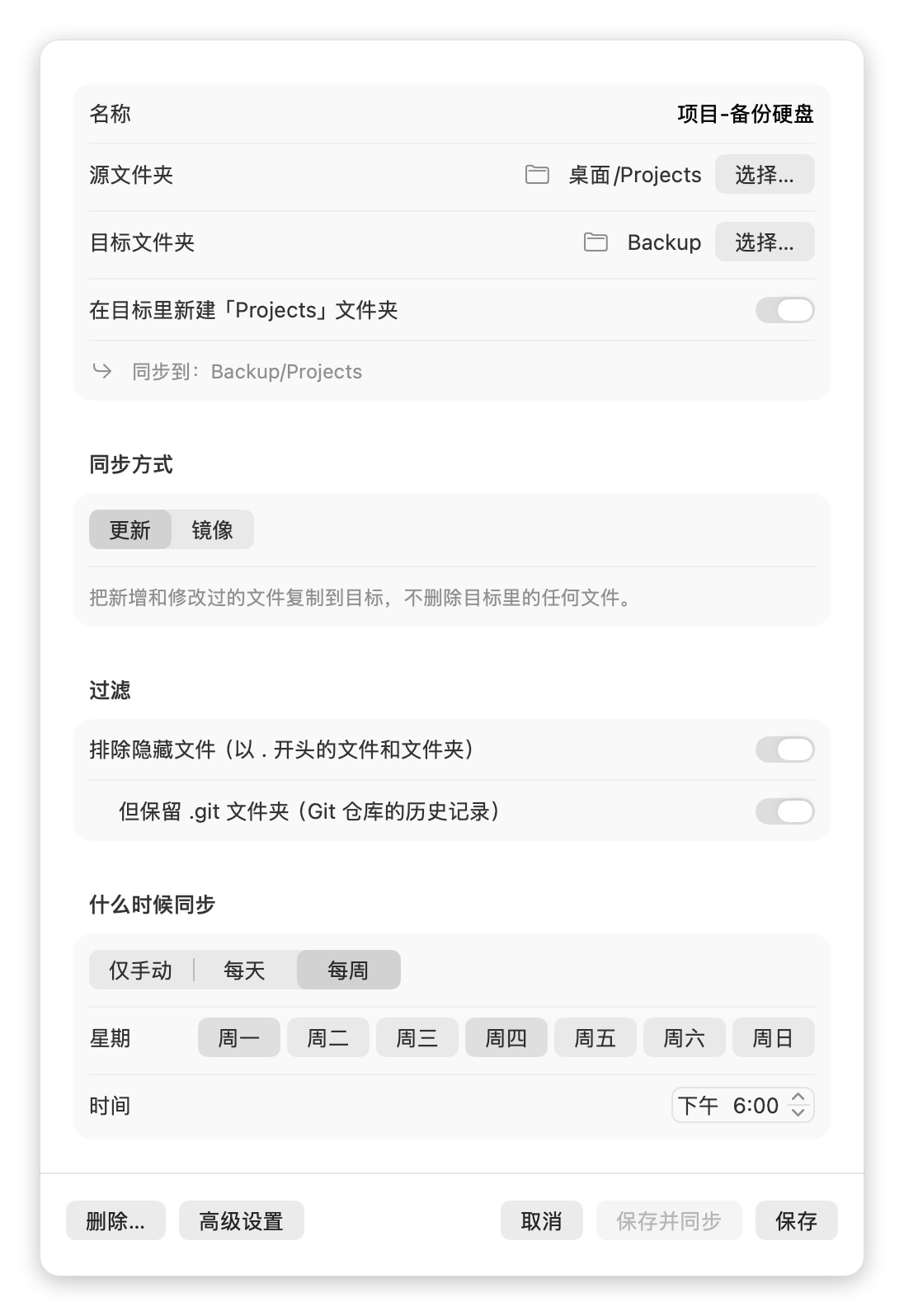
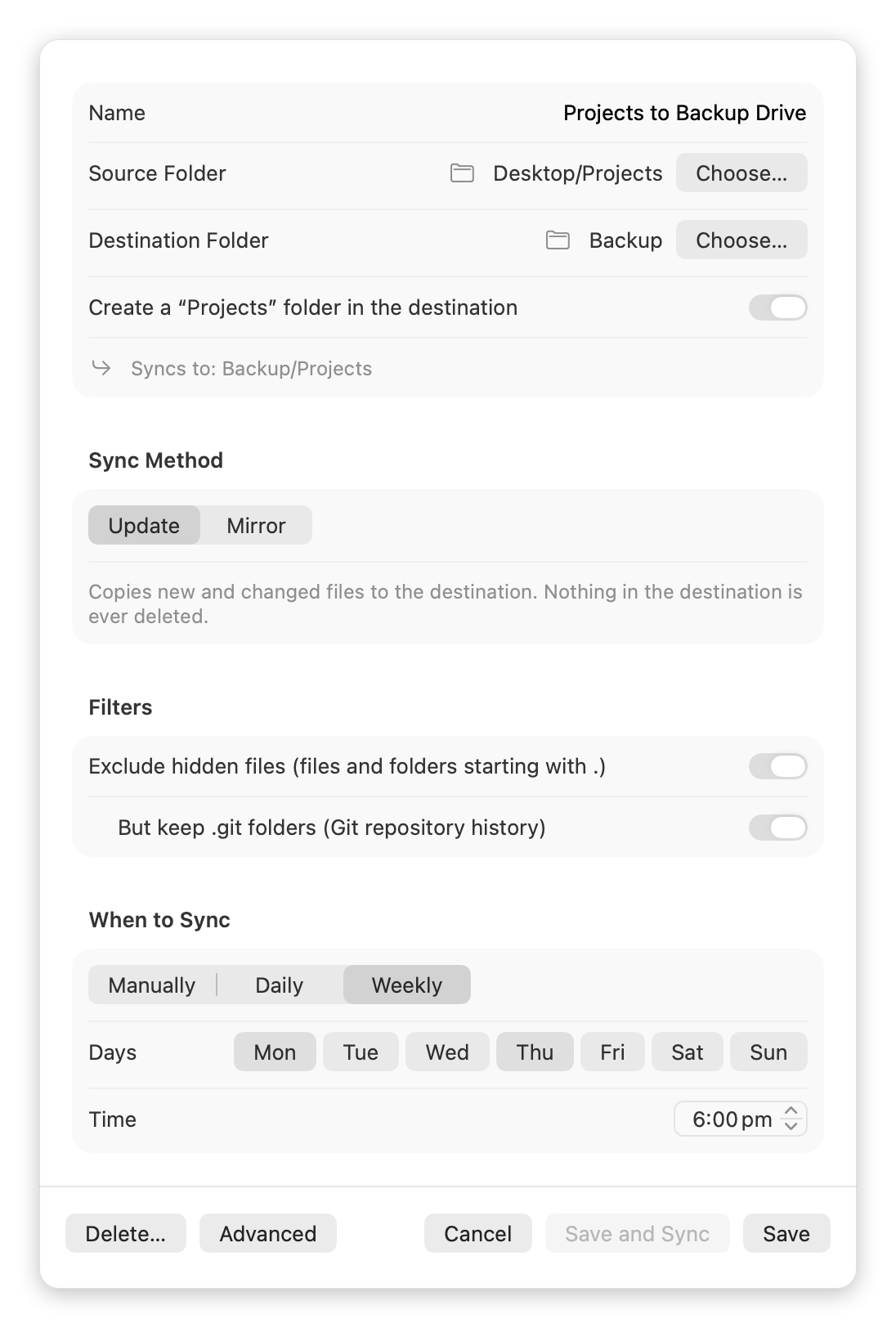
更新只复制新增和修改的文件,从不删除目标里的文件;镜像让目标和源完全一致。Update copies new and changed files and never deletes; Mirror keeps the destination identical to the source.
定时运行Scheduled runs
仅手动、每天或每周几,在后台运行,不需要开着任何软件。也可以随时立即同步一次。Manual, daily or on chosen weekdays — runs in the background with nothing left open. Or sync right now.
移动硬盘感知External-drive aware
硬盘没插时跳过本次同步并发通知,不会把文件写到电脑内置硬盘上。If the drive isn't connected, the run is skipped with a notification — nothing lands on your internal disk.
过滤Filters
排除隐藏文件,并可以单独保留 .git 文件夹,适合备份代码项目。Exclude hidden files while optionally keeping .git folders — handy for backing up code.
首次启动引导Guided setup
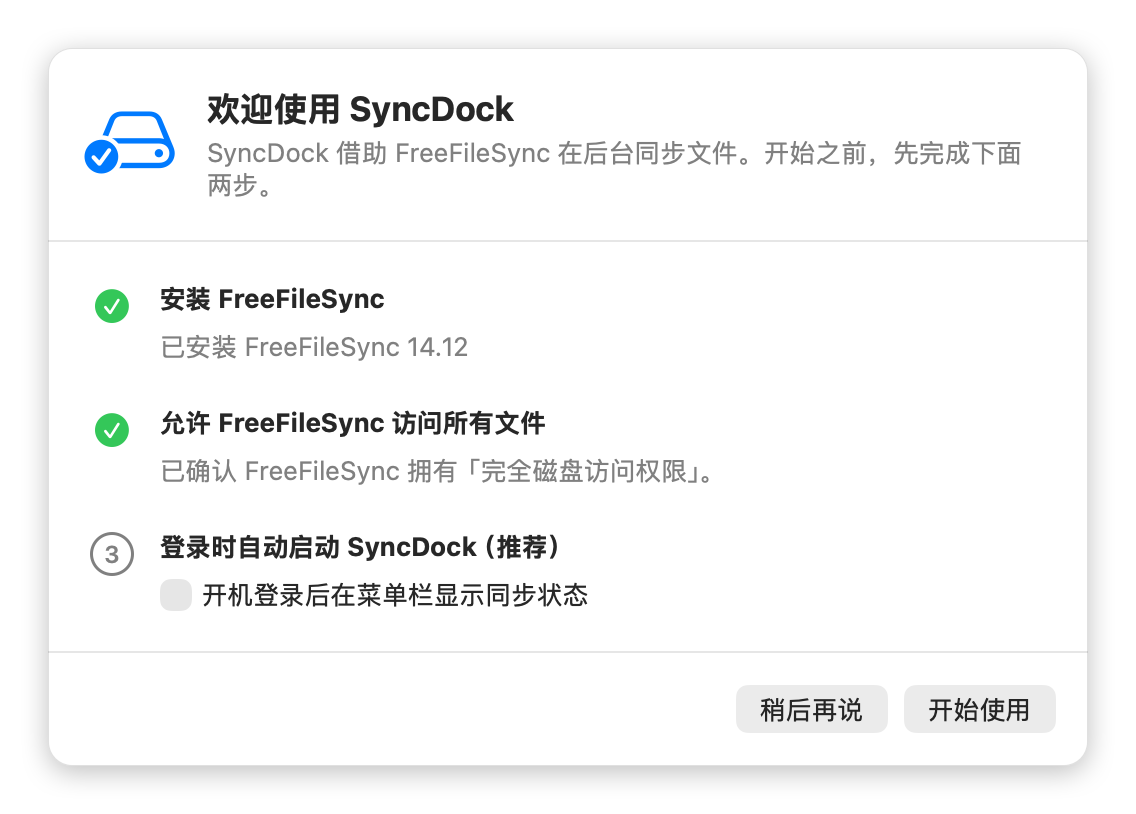
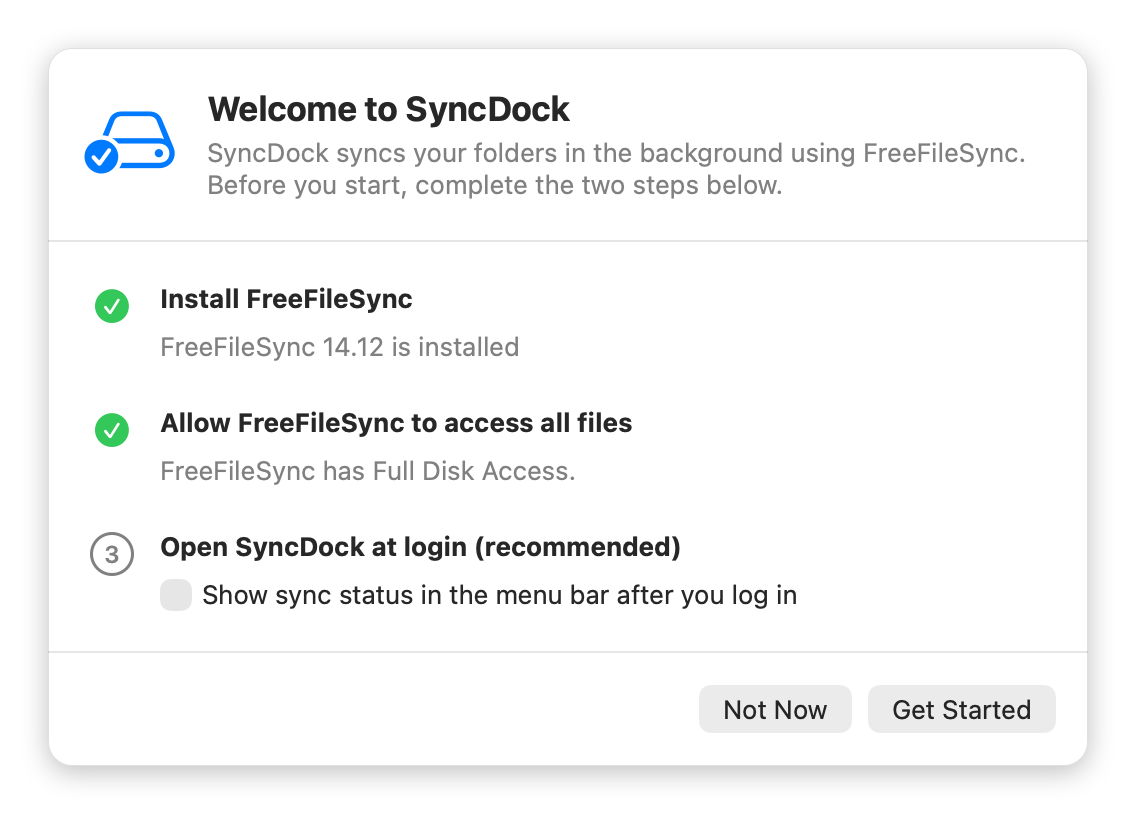
检查 FreeFileSync 是否已安装、是否有「完全磁盘访问权限」,一步步带你完成设置。Checks that FreeFileSync is installed and has Full Disk Access, and walks you through each step.
安装Install
- 下载 SyncDock.dmg,双击打开,把 SyncDock 拖进「应用程序」文件夹。Download SyncDock.dmg, open it, and drag SyncDock into Applications.
- 打开 SyncDock,它只会出现在屏幕右上角的菜单栏里。Open SyncDock. It lives in the menu bar — there's no Dock icon.
- 按「欢迎使用 SyncDock」的提示安装 FreeFileSync(免费),并允许它访问所有文件。Follow the welcome guide to install FreeFileSync (free) and grant it Full Disk Access.
- 点面板右上角的 + 新建第一个同步任务。Click + in the panel to create your first sync task.
常见问题FAQ
为什么需要「完全磁盘访问权限」?Why is Full Disk Access needed?
定时同步在后台运行,没有人能点「允许」。提前授权后,FreeFileSync 才能读取桌面、文稿和移动硬盘里的文件。这个权限是授予 FreeFileSync 的,SyncDock 自己不需要任何特殊权限。Scheduled syncs run in the background where no one can click “Allow”. Granting access up front lets FreeFileSync read your Desktop, Documents and external drives. The permission goes to FreeFileSync — SyncDock itself needs none.
Mac 睡眠或关机时,定时同步会怎样?What happens if my Mac is asleep or off?
睡眠时错过的同步会在唤醒后补跑一次;关机时错过的不会补,等下一次定时再跑。另外需要处于登录状态(锁屏没关系)。A sync missed during sleep runs once after waking. One missed while shut down is skipped until the next scheduled time. You need to be logged in (a locked screen is fine).
删除任务会删掉已经同步的文件吗?Does deleting a task delete synced files?
不会。只删除同步任务和它的定时设置,已经同步过去的文件不受影响。No. Only the task and its schedule are removed; files already synced stay where they are.
需要打开 FreeFileSync 的界面吗?Do I need to open FreeFileSync?
不需要。SyncDock 在后台调用它,平时完全不用打开。需要更多设置时,编辑任务时点「高级设置」即可在 FreeFileSync 里打开。No. SyncDock runs it in the background. For advanced options, click “Advanced Settings” in the task editor to open the task in FreeFileSync.