功能Features
自动识别窗口Smart window detection
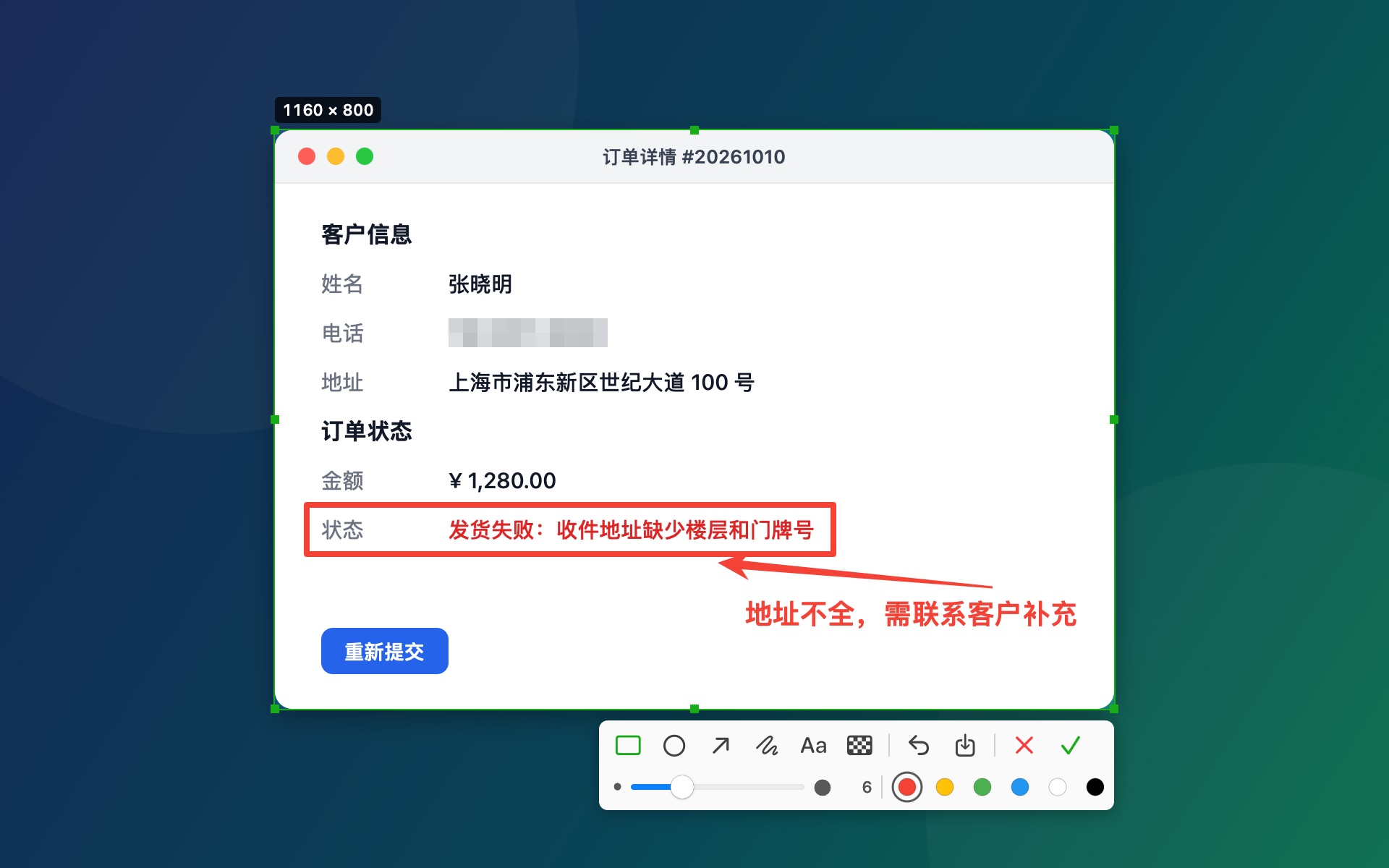
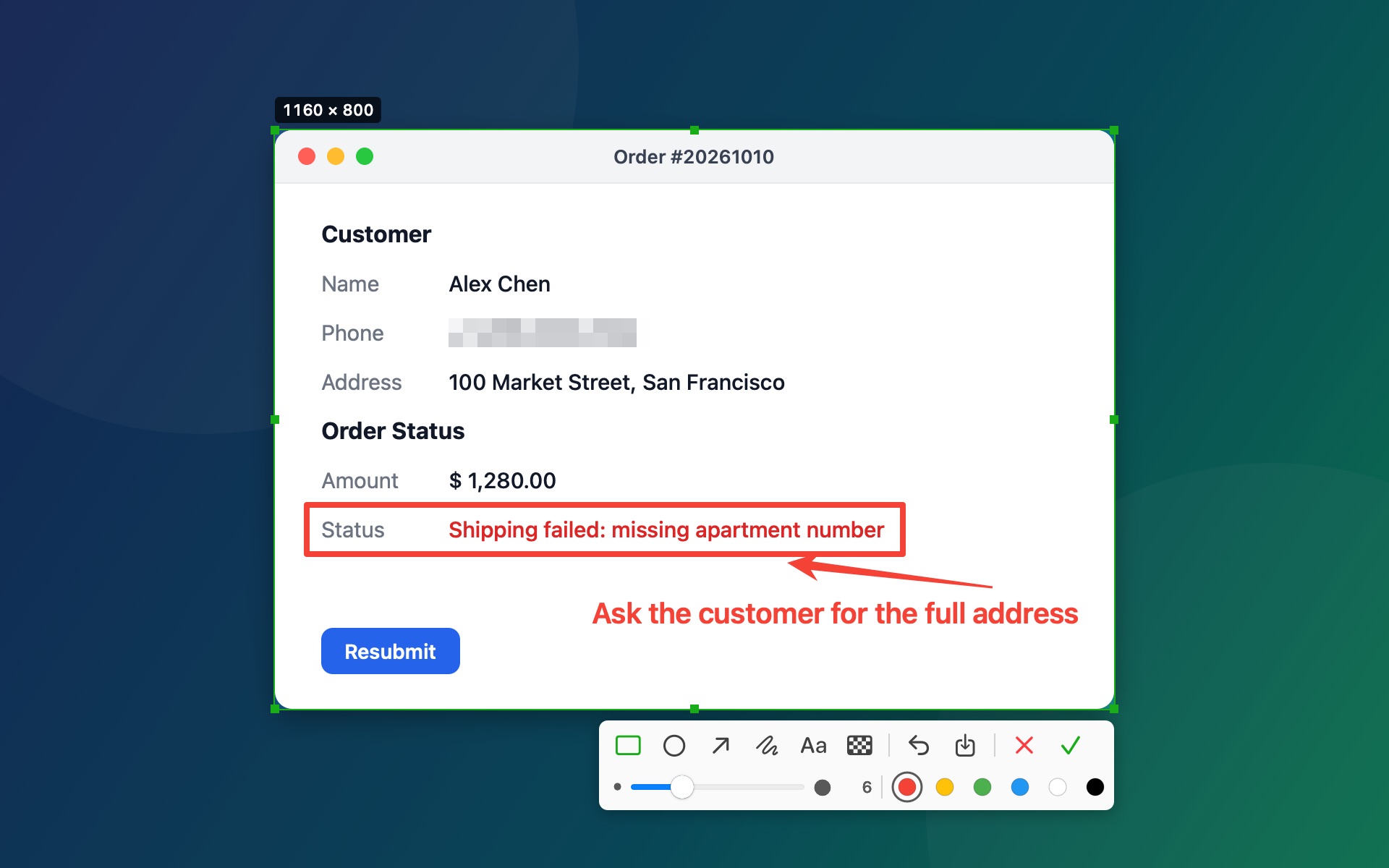
鼠标悬停时高亮窗口,单击即可选中;也可以拖动框选任意区域,拖边角调整大小。Hover to highlight a window and click to select it, or drag to capture any region and fine-tune its edges.
六种标注Six annotation tools
矩形、椭圆、箭头、画笔、文字和马赛克,颜色和粗细用滑块随手调。Rectangle, ellipse, arrow, pen, text and mosaic, with a slider for size and a palette of colors.
随时修改Edit anything
点一下已有的标注就能移动、改粗细和颜色,双击文字重新编辑,⌘Z 撤销。Click an annotation to move it or change its size and color. Double-click text to edit it. ⌘Z to undo.
自动进剪贴板Straight to the clipboard
按回车或双击选区,截图立刻复制,直接粘贴到聊天、邮件或文档里。Press Return or double-click and the image is copied, ready to paste into chats, mail or docs.
自定义快捷键Custom shortcut
默认 ⌃⌥A,可以改成任何顺手的组合,和系统快捷键冲突时会提醒。Defaults to ⌃⌥A. Pick any combination you like — Snipnote warns you about conflicts.
多屏与 RetinaMulti-display & Retina
每块屏幕都能截,按原始分辨率导出,文字清晰不糊。Works on every display and exports at native resolution, so text stays crisp.
中文和英文English & Chinese
界面支持中英文,默认跟随系统,也可以在设置里切换。The interface follows your system language, or switch it in Settings.
轻巧不打扰Tiny and quiet
只在菜单栏,可以开机自启。安装包约 1.5 MB,不联网、不收集任何数据。Lives in the menu bar and can launch at login. About 1.5 MB, no network access, no data collection.
快捷操作Shortcuts
| 操作Key | 说明Action |
|---|---|
| ⌃⌥A | 开始截图(可自定义)Start a capture (customizable) |
| ↩ | 完成并复制到剪贴板(也可以双击选区)Copy to the clipboard and finish (or double-click the selection) |
| ⌘S | 复制,并保存 PNG 到桌面Copy and save a PNG to the Desktop |
| ⌘Z | 撤销Undo |
| ⌫ | 删除选中的标注Delete the selected annotation |
| ← → ↑ ↓ | 微调选区或选中的标注,按住 ⇧ 每次移动 10 点Nudge the selection or annotation; hold ⇧ to move by 10 points |
| Esc | 取消截图Cancel |
安装Install
- 下载 Snipnote.dmg,双击打开,把 Snipnote 拖进「应用程序」文件夹。Download Snipnote.dmg, open it, and drag Snipnote into Applications.
- 打开 Snipnote,屏幕右上角的菜单栏会出现一个剪刀图标。Open Snipnote. A scissors icon appears in the menu bar.
- 第一次截图时,在「系统设置 → 隐私与安全性 → 屏幕与系统音频录制」中允许 Snipnote,然后退出并重新打开它。On your first capture, allow Snipnote in System Settings → Privacy & Security → Screen & System Audio Recording, then quit and reopen it.
- 按 ⌃⌥A 开始截图。Press ⌃⌥A to take a screenshot.
常见问题FAQ
为什么需要「屏幕录制」权限?Why does it need Screen Recording permission?
macOS 要求所有截图工具获得这个权限才能读取屏幕内容。Snipnote 不联网,截图只会进入剪贴板,或保存到你选择保存的桌面文件里。macOS requires it for any app that captures the screen. Snipnote has no network access — your screenshots only go to the clipboard or to the Desktop when you choose to save.
按快捷键没有反应?The shortcut doesn't do anything?
可能被其他应用占用了。点菜单栏的剪刀图标 →「设置…」,换一个组合即可;和系统快捷键冲突时设置窗口会提示。Another app may be using it. Click the scissors icon → Settings… and choose a different combination; Snipnote tells you if it clashes with a system shortcut.
能开机自动启动吗?Can it launch at login?
可以,在菜单栏菜单里勾选「开机自动启动」。Yes — enable “Launch at Login” in the menu bar menu.
如何卸载?How do I uninstall it?
在菜单栏菜单里退出 Snipnote,然后把它从「应用程序」拖到废纸篓。Quit Snipnote from its menu, then drag it from Applications to the Trash.